How to Integrate Evolved QR Codes with Omnisend for Shopify
Evolved QR Codes is a dedicated Shopify app developed and maintained by Anowave to help merchants automate workflows using QR codes. From in-store pickup and order fulfillment to post-purchase automation and integrations with Klaviyo and Omnisend, Evolved QR Codes helps merchants streamline operations and create connected customer experiences.
In this article, we'll explain how Evolved QR Codes can work with Omnisend to connect QR code functionality, Shopify workflows, and automated customer communications.
What Is Omnisend?
Omnisend is an email and SMS marketing automation platform designed primarily for e-commerce businesses, including Shopify merchants. It helps businesses communicate with customers throughout the customer lifecycle, from welcoming new subscribers to recovering abandoned carts and encouraging repeat purchases.
Omnisend offers several key capabilities:
- Email marketing: Create newsletters, promotional campaigns, product announcements, and automated email messages.
- SMS marketing: Reach customers through promotional messages and other relevant communications, where supported.
- Marketing automation: Build automated workflows triggered by customer activity, orders, and other events.
- Customer segmentation: Group customers based on purchase history, engagement, and other available data.
- Personalization: Customize messages using customer information and event properties.
- Shopify integration: Connect store activity and customer data with marketing campaigns and automation workflows.
For Shopify merchants, Omnisend provides a way to turn customer and order activity into timely, personalized communications without having to manage every message manually.
Evolved QR Codes: More Than Just a QR Code
We call them *Evolved QR Codes* because they go beyond simply providing access to a URL. They turn QR codes into dynamic entry points for Shopify workflows, allowing merchants to automate repetitive, time-consuming processes.
From order fulfillment to post-purchase customer engagement, QR codes can become part of a broader automation strategy that connects physical interactions with digital workflows.
Example: Automating In-Store Pickup
One example is local delivery and in-store pickup.
When customers collect their online orders in person, merchants need to identify the order, verify the relevant details, update the order status, and hand over the purchased goods. Although these steps seem straightforward, processing every pickup manually can consume valuable time and introduce unnecessary friction into daily operations.
With Evolved QR Codes, much of this process can be automated, leaving staff to handle the physical handover.
The workflow can operate as follows:
- Automatic QR code generation: When a customer places an order, Evolved QR Codes can generate a QR code associated with the relevant order.
- QR code delivery: The QR code can be delivered to the customer by email through a configured workflow.
- Quick order identification: When the customer arrives, staff scan the QR code using a phone to identify the corresponding order.
- Automated order processing: Depending on the configured workflow, the scan can initiate actions such as fulfilling the order and updating its status in Shopify.
- Customer confirmation: A subsequent workflow can send the customer a confirmation email once the pickup process is complete.
The result is a faster, more consistent pickup experience with less manual work for store staff.
Why Integrate Evolved QR Codes with Omnisend?
Evolved QR Codes handles QR code generation and QR-driven Shopify workflows. Omnisend adds a customer communication layer, allowing merchants to connect operational events with email and SMS marketing automation.
By integrating the two, merchants can build workflows that respond to what customers do and what happens to their orders.
For example, a merchant could use QR codes to simplify order pickup and Omnisend to manage the related customer communications. Instead of treating order processing and email marketing as separate activities, the merchant can connect them through automated workflows.
The benefits include:
- Less manual communication: Trigger relevant messages based on configured events.
- A better customer experience: Send timely pickup instructions, reminders, and confirmations.
- More flexible automation: Customize communications for different order statuses and customer interactions.
- Post-purchase engagement: Follow up with customers through review requests, product recommendations, and other relevant campaigns.
- Connected workflows: Combine QR code functionality, Shopify order management, and customer marketing automation.
How Evolved QR Codes and Omnisend Work Together
Shopify Flow can act as the bridge between Evolved QR Codes and Omnisend, passing events and associated data to Omnisend so that they can be used in configured automation workflows.
Here are four practical ways to use this integration.
1. Send QR Codes to Customers
When a customer places an order, Evolved QR Codes can generate a QR code associated with that order. A configured workflow can then deliver the QR code to the customer by email.
Omnisend can be used for this communication when the integration provides the necessary data and the QR code is accessible in a format that the email template can display. For example, the email could contain a hosted QR code image or a link to the QR code.
This gives customers a convenient way to access their order or pickup information without having to search through their order history.
2. Automate Pickup Notifications
Merchants can use Shopify Flow to send relevant events to Omnisend when an order reaches a particular stage.
For example, a workflow could trigger a pickup reminder or a ready-for-pickup notification when the appropriate event occurs. The message can include relevant order information, helping customers understand when and how to collect their purchases.
The exact trigger depends on the merchant's Shopify workflow and the events available to the integration.
3. Confirm Successful Pickup
Once a customer arrives and the QR code is scanned, Evolved QR Codes can initiate the configured order-processing actions.
After the relevant order status or fulfillment event is recorded, Shopify Flow can pass the event to Omnisend. Omnisend can then trigger a confirmation message, letting the customer know that the pickup has been processed.
Merchants can also configure follow-up communications, such as review requests or customer satisfaction messages, subject to their messaging permissions and automation settings.
4. Build More Advanced Customer Journeys
The integration can extend beyond pickup notifications.
By passing relevant event properties to Omnisend, merchants can build automation workflows based on specific customer interactions or order events. Depending on the data available, these workflows could include post-purchase education, review requests, personalized product recommendations, and campaigns designed to encourage repeat purchases.
This makes QR codes more than a tool for identifying orders. They become part of a connected system that links store operations with customer engagement.
Before you continue with the "How to" below
Evolved QR Codes helps Shopify merchants automate processes that would otherwise require manual intervention, while Omnisend makes it possible to connect those processes with personalized customer communications.
Together with Shopify Flow, the two platforms can support workflows that combine QR code generation, order processing, customer notifications, and post-purchase engagement.
For merchants looking to reduce repetitive work and build more connected customer experiences, integrating QR
How to use Shopify Flow to connect Evolved QR codes with Omnisend
- Step 1: Install Shopify Flow
-
Shopify Flow is free app available in the Shopify App store. Go to https://apps.shopify.com/flow to install the app on your store
- Step 2: Create new Workflow in Shopify Flow
-
Go to Apps / Flow and click Create Workflow
- Step 3: Select Create Order trigger
-
A Shopify Flow trigger is an event that starts an automated workflow when a specific condition occurs in a Shopify store, such as an order being created, a customer being added, or a QR code being generated.
To select a trigger click Select trigger from the Webflow canvas
.png)
- Step 4: Add Generate Evolved QR code action
-
A Shopify Flow action is a task performed by a workflow after it starts, such as generating a QR code, sending an event to Omnisend, or updating an order or customer.
To add action:
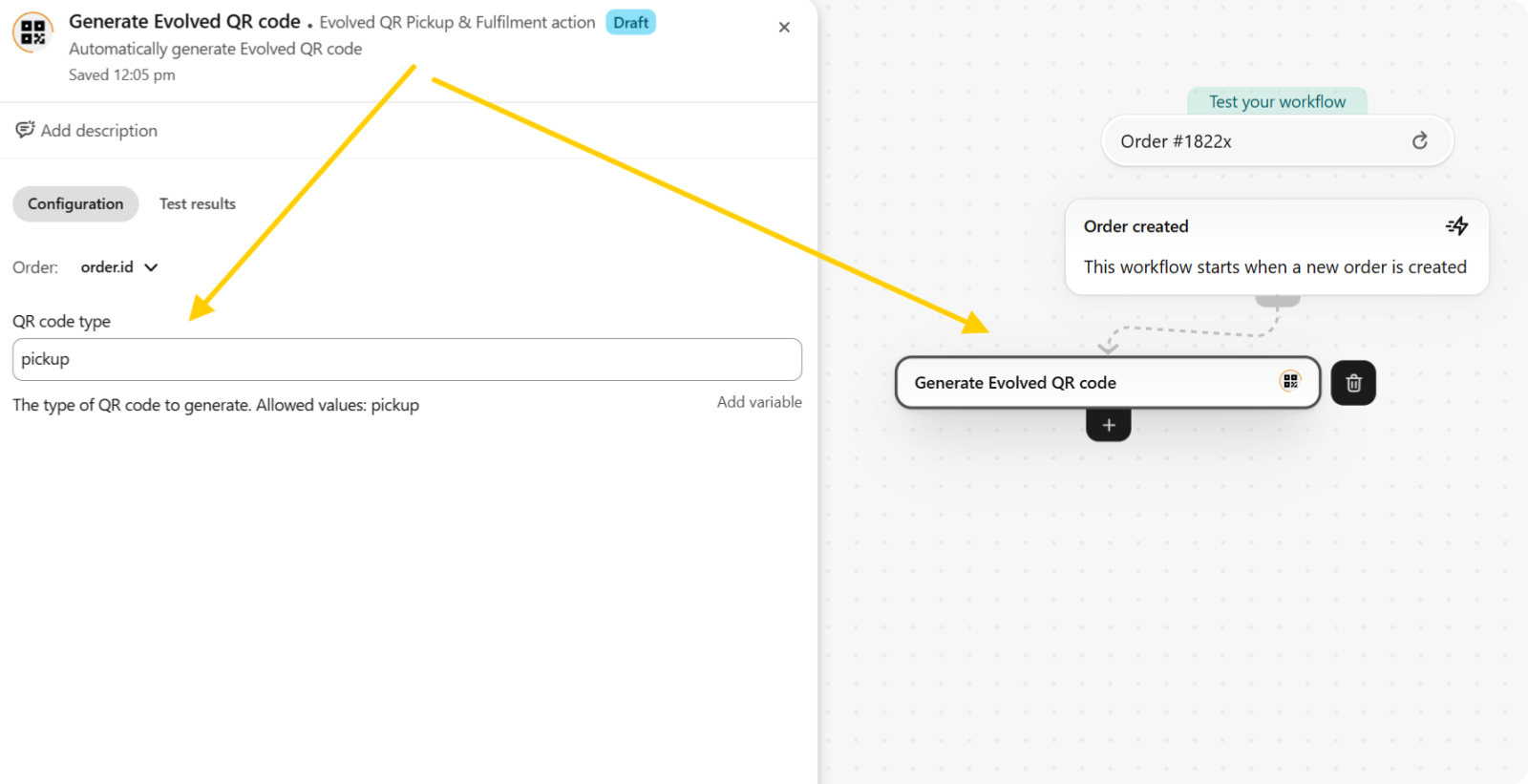
- 1. Hover the Order created box, in the bottom you shall see a black + icon showing called Action
- 2. Click Action and then from the left panel select Generate Evolved QR code
- 3. In QR code type enter: pickup
This tells the app that you want to generate an In-Store Pickup code - This will generate a QR code automatically when order is created in Shopify
- Step 5: Add Omnisend action
-
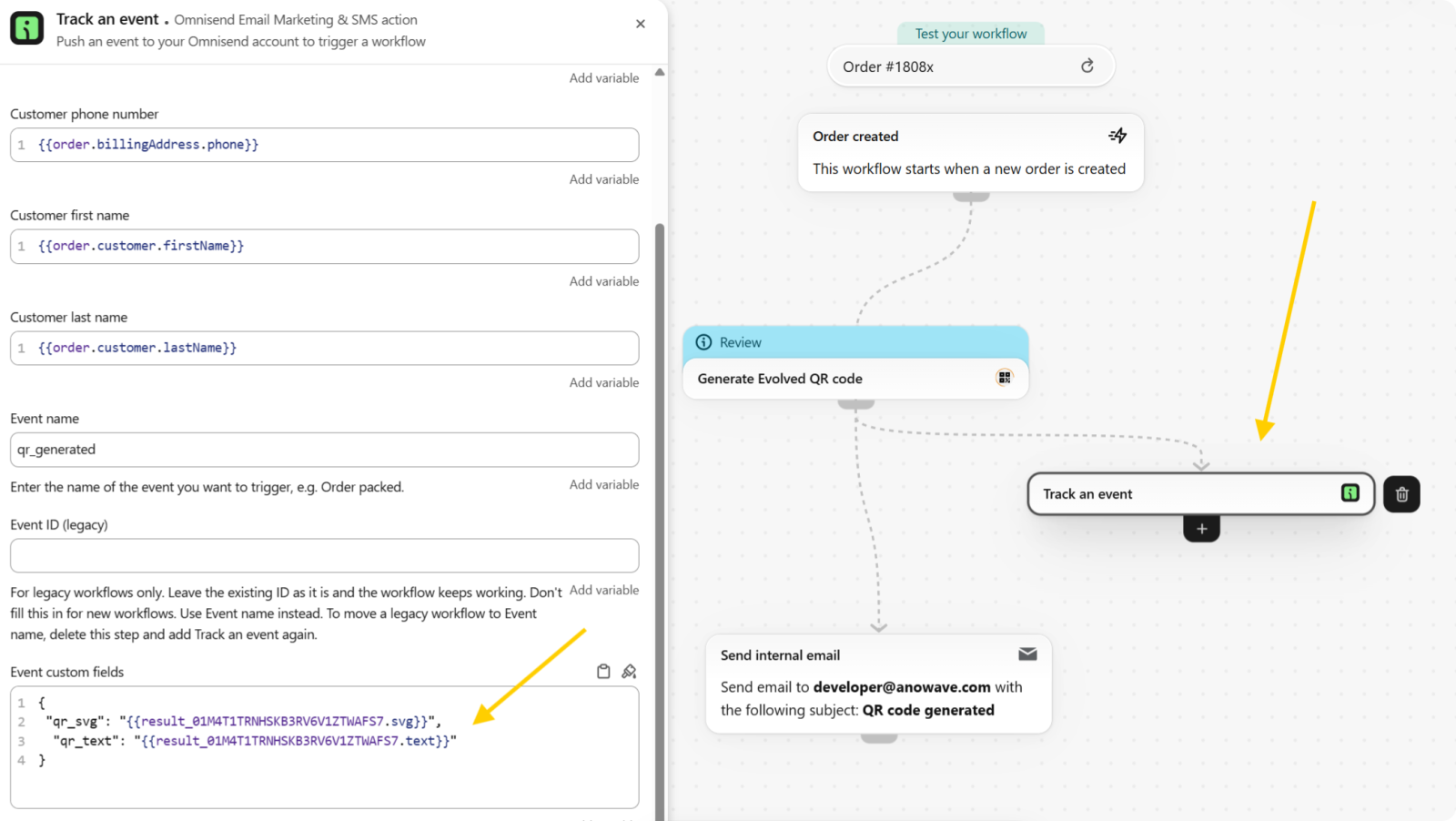
Shopify Flow allows for connecting multiple actions sequentially and in parallel. We can now retrieve the result from the QR code generation action and pass this to Omnisend via separate Action
- Click Action on the Generate QR code action itself. This will allow you to add action for the action
- From the left panel select Omnisend Email Marketing & SMS
- From the Omnisend options, select Track event
- Fill in the variables on the left using Add variable menu
- Important parameter here is the Event Custom Fields. This is a JSON object that gets passed to Omnisend, when the Workflow is executed. This JSON object can contain parameters that are returned from Generate QR code action executed by Evolved QR codes. This allows you to access the QR code text, link and SVG image.
- Step 6: Turn on Workflow
-
A Shopify Flow workflow must be turned on to allow Shopify to automatically execute its configured triggers, conditions, and actions when the specified events occur.
- Step 7: Create Workflow in Omnisend
-
Configuring Shopify Flow is just half of the whole configuration. To make this work, we should now create a workflow in Omnisend itself. This will allow it to trigger operations whever an event is received from Shopify
- Go to Omnisend and click Automation
- Click Create workflow
- Click Create from scratch
- From Trigger menu select API and look for event called qr_generated
- From the components show on the left clik & drag Email component
- Fill in desired subject line
- Click Edit content to edit the email content
- You can now use the dynamic parameters that come with the event defined from the JSON object to insert the QR code image dynamically and also add a manual link to the QR code endpoint.
.png)
- Step 8: Publish changes
-
An Omnisend workflow must be published to activate the automation and allow it to process incoming events and execute its configured actions, such as sending emails or SMS messages.